A self-custody wallet can keep its keys on your iPhone and still reveal too much when the phone is already unlocked. A curious friend can open the app. A colleague can glance at the app switcher. A short trip away from your desk can become a long open session. The recovery phrase may remain perfectly local while the wallet interface is unnecessarily exposed.
Aperture addresses that everyday risk with four separate controls: a six-digit app passcode, Face ID as an unlock shortcut, an automatic-lock timer, and a privacy mode for iOS app-switcher previews. They work together, but they do different jobs. Understanding the boundary of each one is the difference between a security setup and a collection of toggles.
Protecting the keys and protecting the visible wallet are related jobs—not the same job.
The four layers at a glance
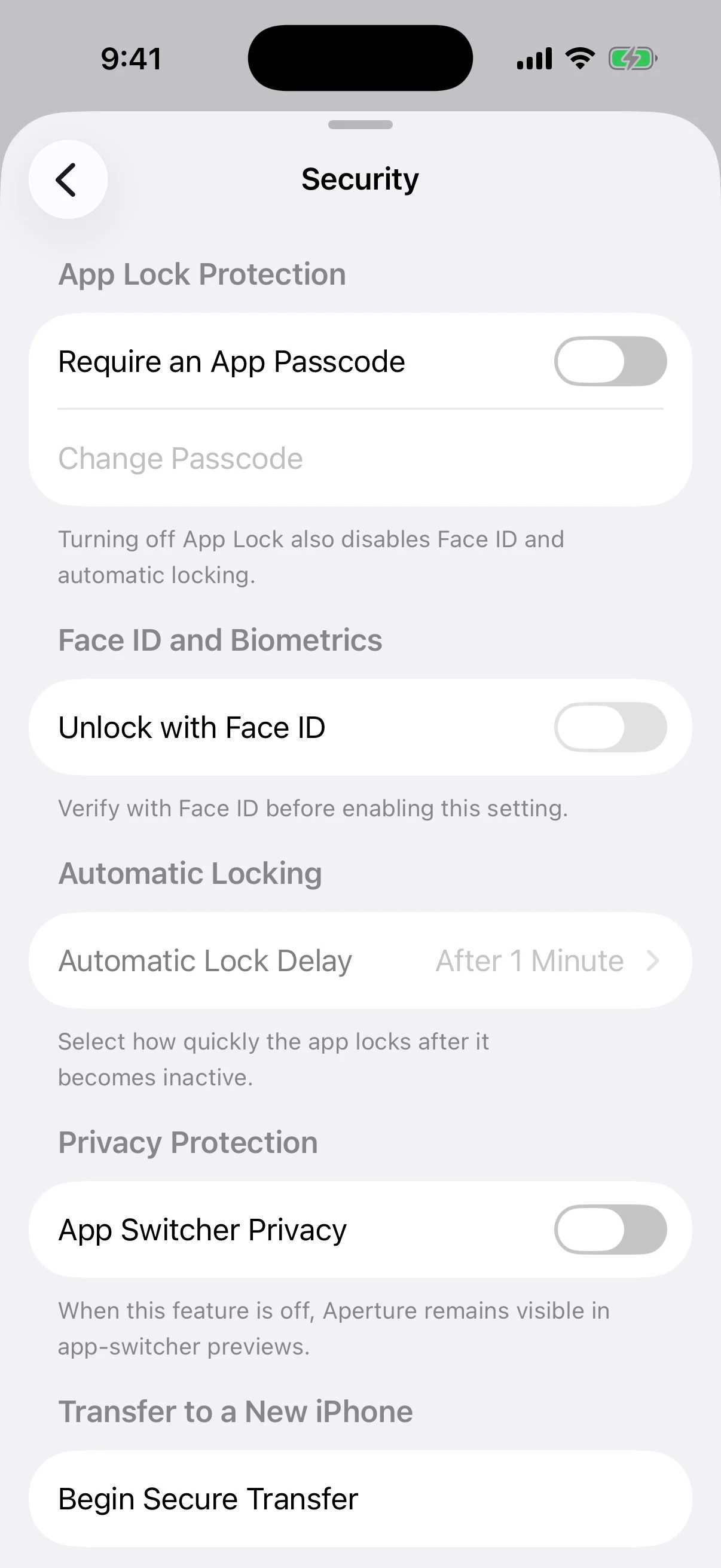
Real Aperture 2.40.12 output from an empty article-only wallet in the iOS Simulator. No recovery phrase, private key, funded address, or passcode appears anywhere in this guide.
App Passcode: a local gate in front of the wallet interface and protected actions. It is separate from your iPhone passcode and separate from your recovery phrase.
Face ID: an iOS-evaluated convenience path for satisfying the App Lock gate without typing the Aperture passcode.
Automatic Lock: the rule that decides how soon Aperture asks for authentication after the app becomes inactive.
App Switcher Privacy: a presentation control that conceals balances and amounts while Aperture is shown in the iOS app switcher.
App Lock is the foundation. Face ID and automatic locking stay unavailable until it is enabled. App Switcher Privacy is independent: you can use it even without App Lock because hiding a balance preview and blocking access are different decisions.
Start with the threat you actually have
These controls are built for local-access and shoulder-surfing risks: someone briefly holding an already-unlocked iPhone, an unattended device that has not locked yet, or a revealing app-switcher card. They are not a substitute for a strong iPhone passcode, current iOS, a verified wallet backup, or careful handling of the recovery phrase.
For most people, a sensible target is simple: Aperture should close its local access window quickly, Face ID should make reopening painless, and the app switcher should not advertise the wallet balance. If your phone is routinely shared, used in public, or holds meaningful value, choose a shorter timing rule.
1. Create the Aperture app passcode
Open Aperture, tap the settings control on the wallet home, choose Security, and turn on Require an App Passcode. Aperture asks for six digits and then asks you to enter the same six digits again. The confirmation step prevents a mistyped passcode from becoming the only value the app accepts.
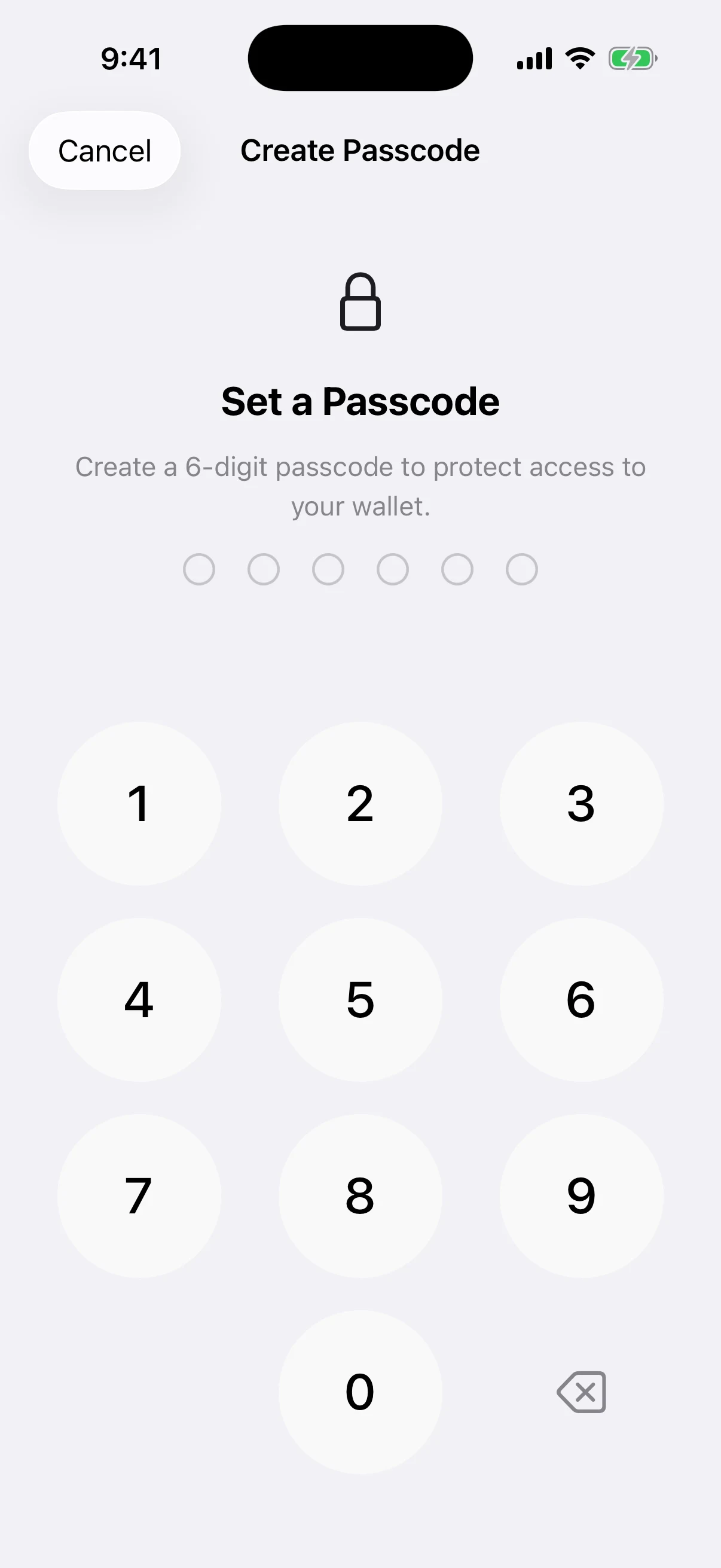
Real setup screen captured before any digit was entered. The custom keypad and six empty indicators make the credential length explicit without displaying the eventual value.
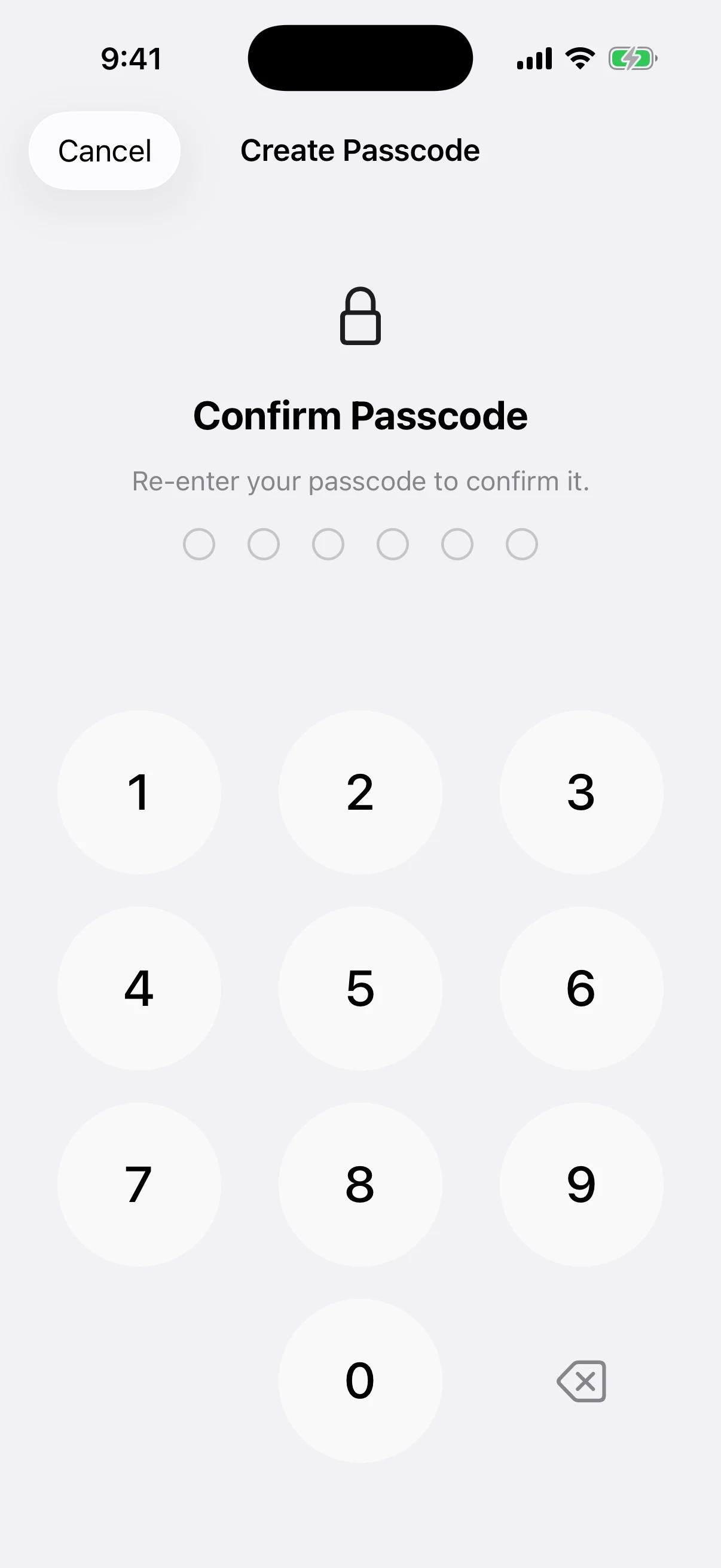
Real confirmation screen, again captured with every indicator empty. The temporary Simulator-only credential was never shown, logged, or reused.
What Aperture stores—and what it does not
Aperture does not store the readable six-digit passcode. It generates a fresh 32-byte random salt and derives a 32-byte verifier with PBKDF2-HMAC-SHA256 using 210,000 iterations. Passcode comparisons use a constant-time byte comparison. The verifier is stored in Aperture’s app-scoped iOS Keychain vault as a non-synchronizing, this-device-only item available only while the device is unlocked.
The wallet database keeps an opaque Keychain reference plus the failed-attempt count and any active lockout deadline. That separation means copying the ordinary database is not the same as obtaining the passcode verifier, and the verifier is not the wallet’s recovery phrase or private key. For the broader storage boundary, read What Never Leaves Your iPhone: Aperture’s Self-Custody Security Model.
The distinction is important: App Lock protects access to Aperture on this device. It does not alter the blockchain keys, add words to the recovery phrase, or replace an optional BIP-39 passphrase. If you need the latter, see Add a BIP-39 Passphrase to an Aperture Wallet.
Wrong guesses slow down instead of running forever
The first four incorrect app-passcode attempts return an error. The fifth starts a five-second lockout. Continued failed attempts escalate through 30 seconds, 5 minutes, 30 minutes, 1 hour, and then a maximum 6-hour delay. A successful passcode entry resets the failed-attempt count and clears the lockout.
This is defense in depth, not a reason to choose a predictable PIN. Avoid repeated digits, dates, phone fragments, and the same code you use elsewhere. More importantly, keep the iPhone itself protected: Aperture’s six-digit gate is one local layer inside Apple’s device security, not a replacement for it.
2. Add Face ID as the shortcut—not the foundation
After App Lock is active, turn on Unlock with Face ID. Aperture does not silently accept the setting change. It first asks iOS to verify the currently enrolled face. Only a successful biometric result enables the preference.
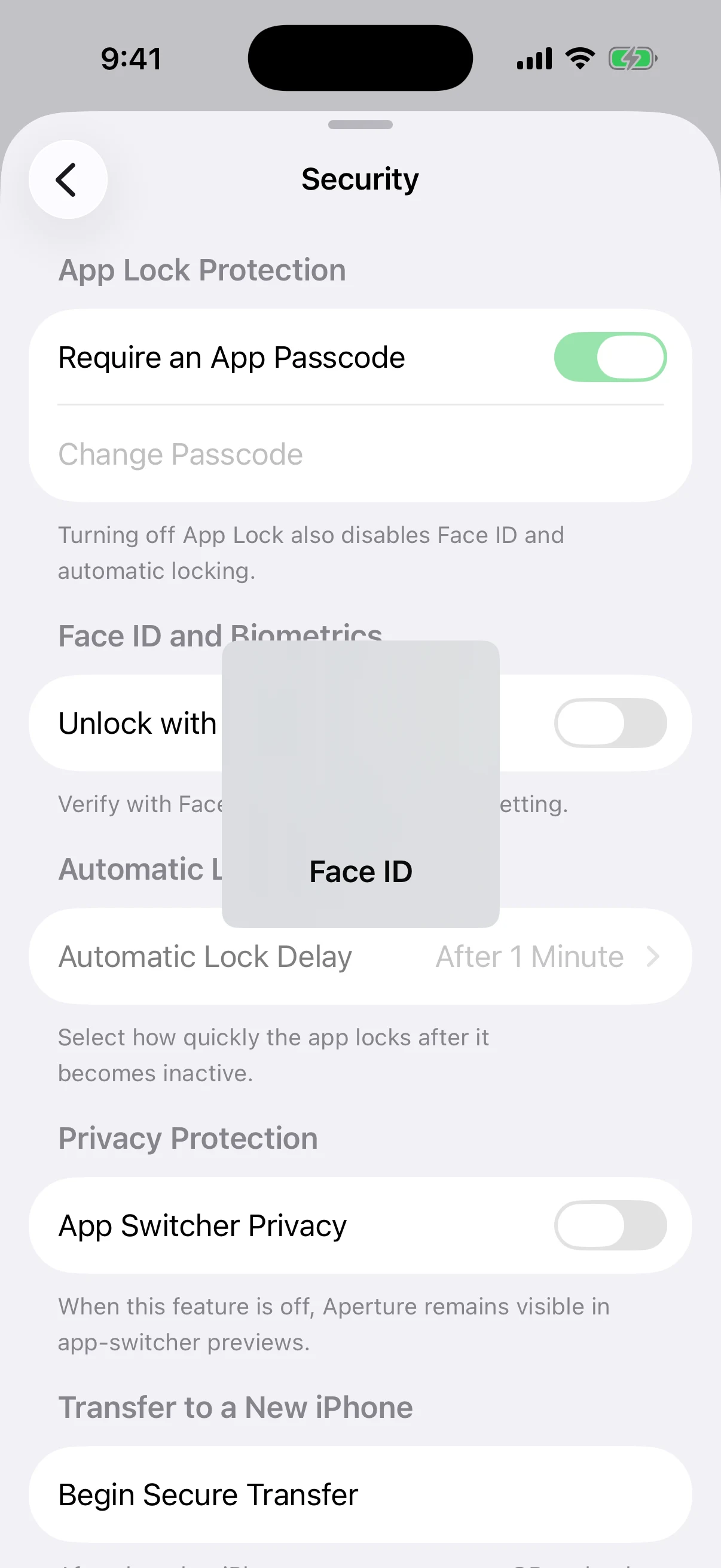
Real iOS Face ID verification over the production Aperture Security screen. The underlying screen remains visually protected while the system owns authentication.
Aperture asks iOS to evaluate Face ID and receives an authentication result; it does not store a facial template in the wallet database. The app passcode remains the fallback credential. If Face ID is unavailable, interrupted, cancelled, or unsuccessful, Aperture routes back to passcode entry instead of treating biometric failure as proof of identity.
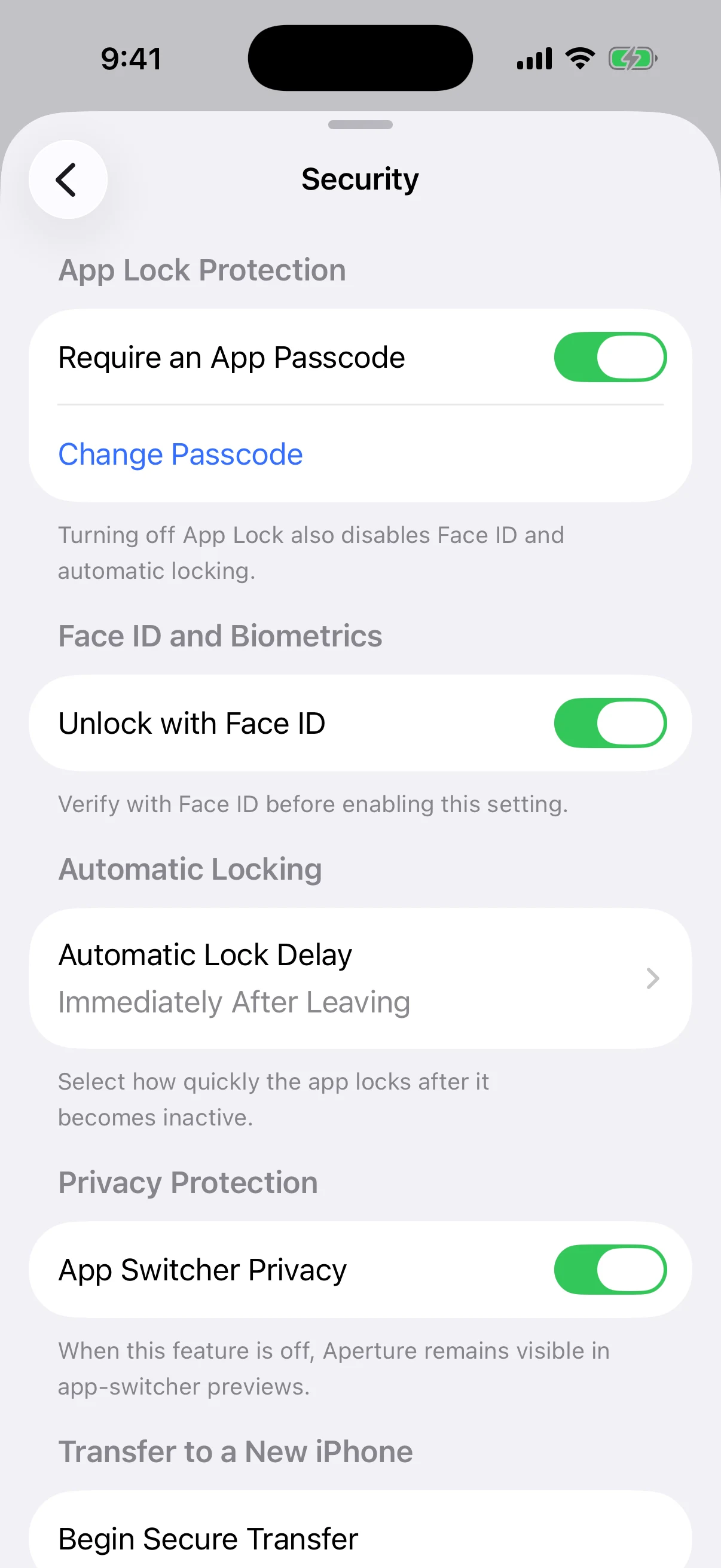
Real Security settings with every article feature enabled for verification: App Passcode, Face ID, immediate automatic locking, and App Switcher Privacy. All four were returned to their original test-device state after capture.
Face ID failure is a detour, not a dead end
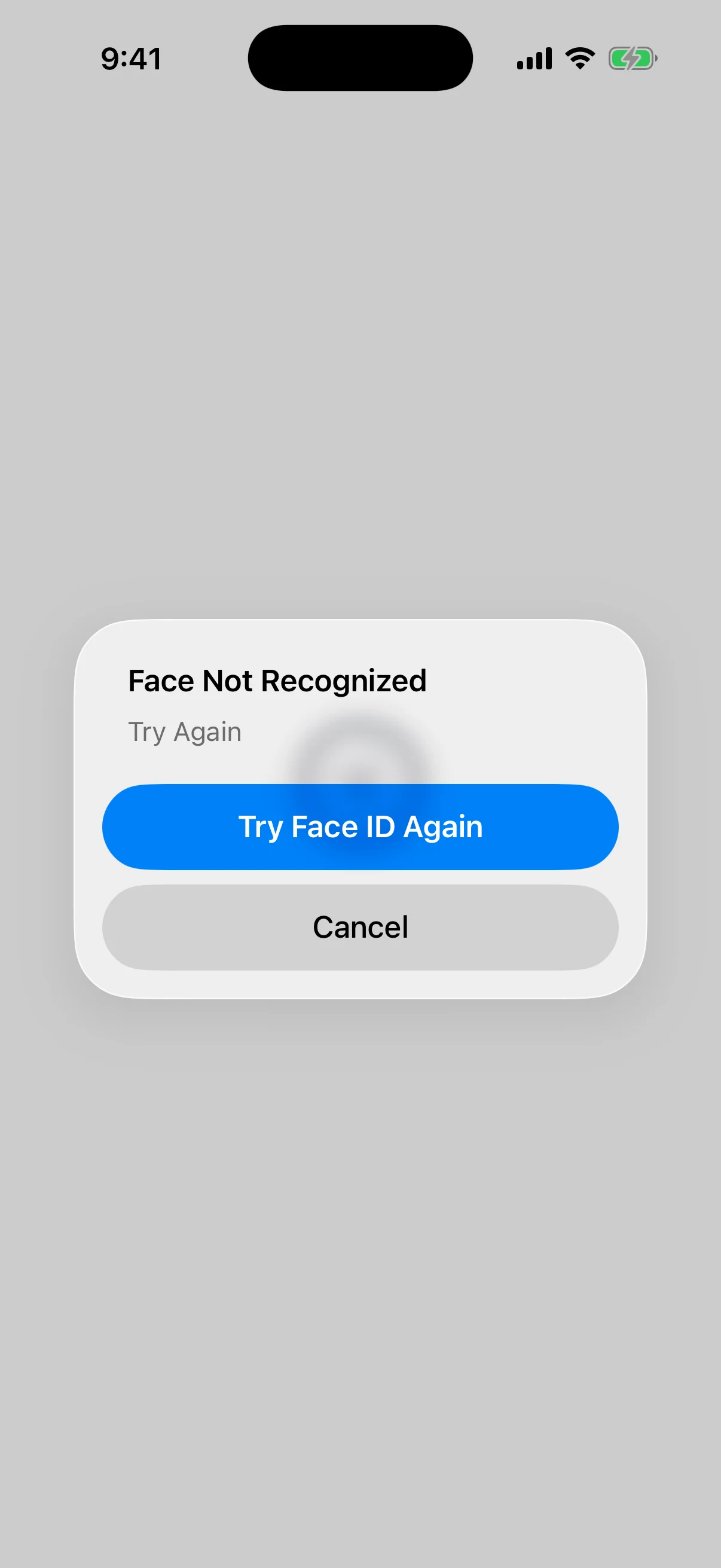
Real iOS Simulator biometric failure. No artificial error card or mock interface was used.
If the face is not recognized, iOS can try again or cancel. Cancelling the biometric prompt reveals Aperture’s own passcode screen. The Face ID control on the keypad also lets you retry biometrics later when the setting and device availability permit it.
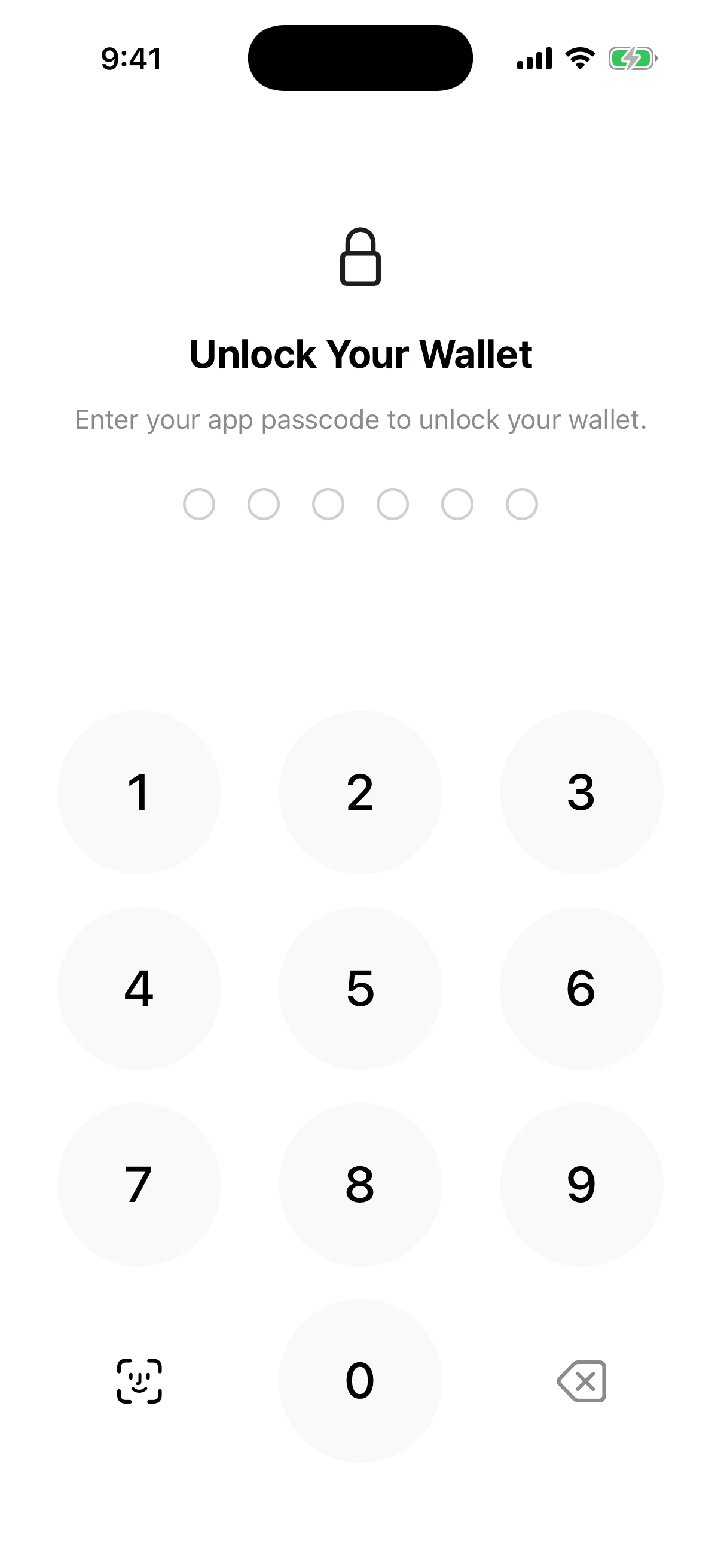
Real automatic-lock result: Aperture reopened to its six-digit passcode gate. The indicators were empty and the temporary test passcode was never visible.
3. Choose how quickly Aperture closes the access window
Automatic Lock starts from a plain question: after Aperture becomes inactive, how long should the existing authenticated session remain usable? The available choices are:
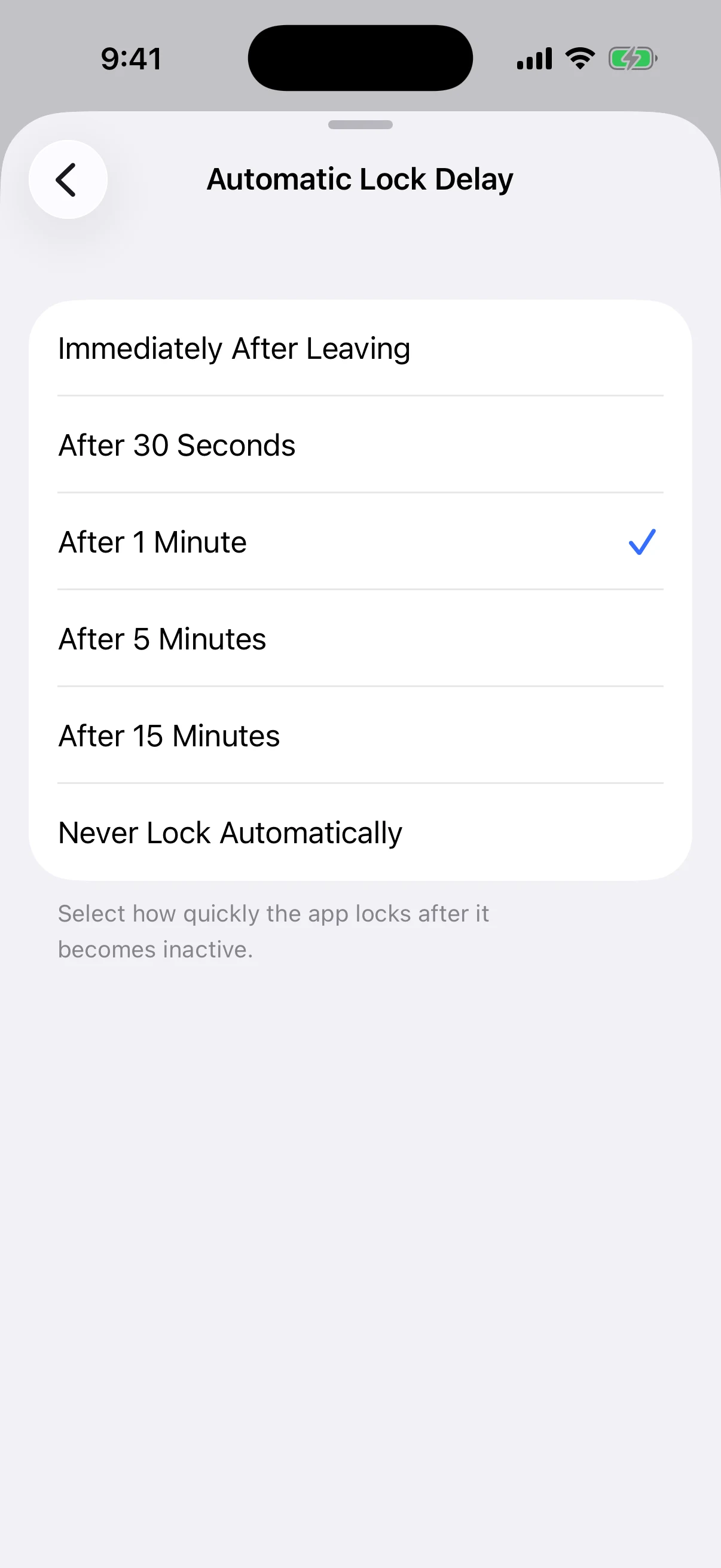
Immediately After Leaving. Aperture requests the wallet lock as soon as the app becomes inactive. This is the strongest choice for shared devices, public environments, or users who prefer an explicit unlock every time.
After 30 Seconds or After 1 Minute. Short grace periods make quick app switches convenient while keeping the unattended window small. One minute is the production default shown before App Lock is configured.
After 5 Minutes or After 15 Minutes. Longer sessions reduce repeated prompts but leave a larger opportunity if the unlocked phone changes hands.
Never Lock Automatically. Background inactivity does not trigger the timer. App Lock still exists and can apply on a protected launch or protected action; this choice only removes inactivity-based locking.
For timed choices, Aperture records when it entered the background and compares the elapsed time when it becomes active again. With the immediate choice, the lock request happens on the inactive/background transition itself. If App Lock is turned off, Face ID and automatic locking are disabled with it.
4. Conceal the app-switcher preview
Turn on App Switcher Privacy to reduce casual balance exposure whenever Aperture is inactive. The wallet card remains recognizable, but total balance, token balances, and fiat amounts are replaced with neutral placeholders. Asset names and the overall interface structure remain visible, so this is selective redaction rather than a fake blank screen.
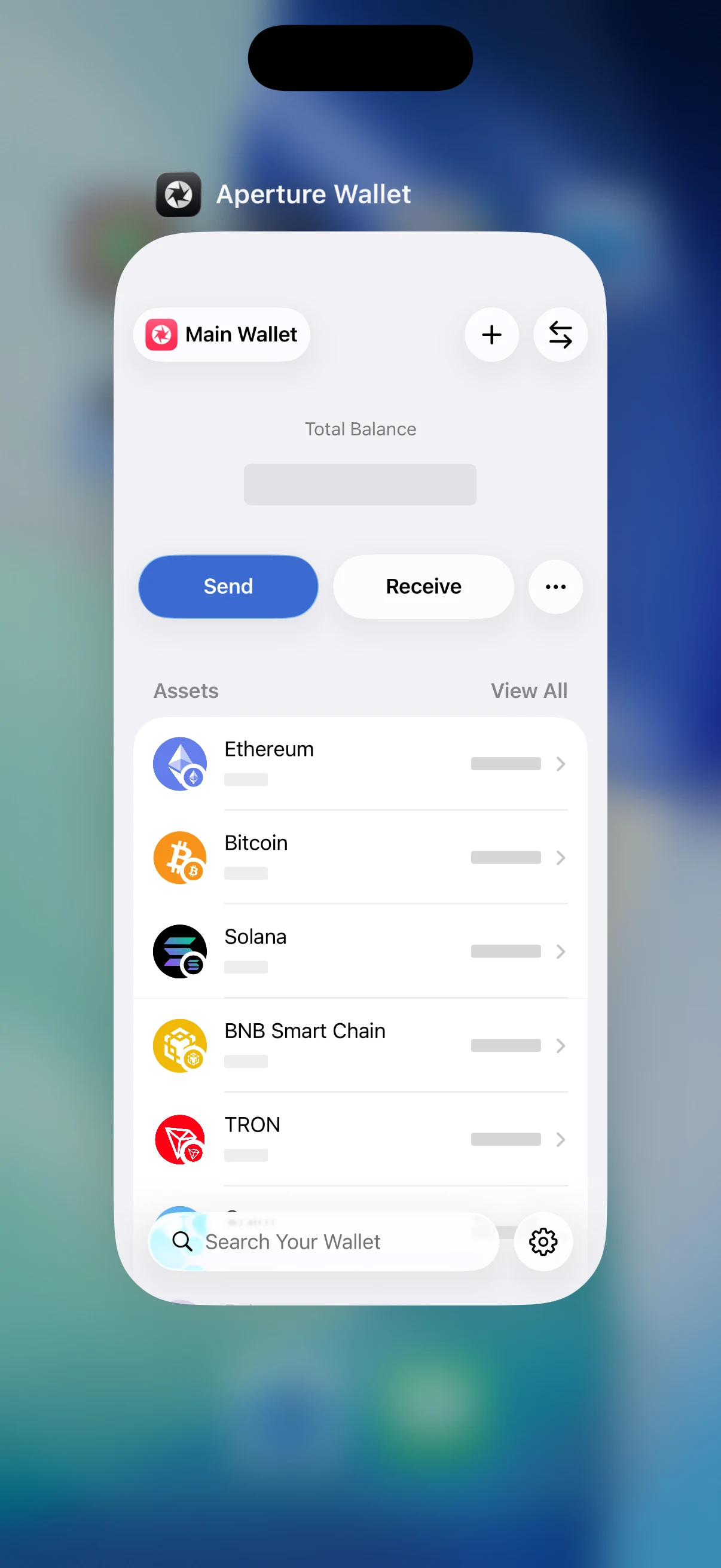
Real iOS app-switcher capture from the empty article wallet. No blur was added to the screenshot; the gray amount placeholders are Aperture’s production privacy behavior.
This control does not lock the app, hide public blockchain data from a network provider, prevent a screenshot you deliberately take while Aperture is active, or retract information copied to the clipboard. It solves one specific presentation problem well: the app switcher no longer becomes a passive balance display.
How the layers behave together
You leave Aperture. App Switcher Privacy redacts amounts as the app becomes inactive. It does not wait for the auto-lock timer.
The selected delay expires. Aperture marks the wallet as requiring authentication. With “Immediately,” that happens as soon as you leave.
You return. If Face ID is enabled and available, iOS receives the first authentication request while Aperture keeps protected content covered.
Face ID succeeds. The wallet opens without typing the app passcode.
Face ID cannot complete. Aperture falls back to the six-digit app passcode and preserves the lock.
You turn App Lock off later. Aperture also disables Face ID and inactivity-based automatic locking. App Switcher Privacy remains its own setting.
Three practical configurations
Balanced daily use: App Passcode on, Face ID on, After 30 Seconds or After 1 Minute, App Switcher Privacy on. This is the best starting point for most personal phones.
Maximum local privacy: App Passcode on, Face ID on, Immediately After Leaving, App Switcher Privacy on. Every departure closes the wallet access window while Face ID keeps return friction low.
Biometric-minimal: App Passcode on, Face ID off, a short automatic-lock delay, App Switcher Privacy on. Choose this when you prefer deliberate passcode entry and accept the extra taps.
“Never Lock Automatically” is appropriate only when you understand the tradeoff and the iPhone has a tightly controlled use pattern. Convenience is real, but so is the length of the authenticated session.
What these controls cannot protect
A strong local setup still has boundaries. App Lock, Face ID, automatic locking, and app-switcher redaction cannot:
recover a lost recovery phrase, private key, or required BIP-39 passphrase;
reverse a transaction already accepted by a blockchain;
hide public addresses and transaction history from the chain or every network provider;
protect a recovery phrase after you photograph it, paste it into a website, send it in a message, or reveal it to another person;
make a jailbroken or fully compromised operating system trustworthy; or
replace a verified backup plan for the day the iPhone is lost or destroyed.
For recovery planning, continue with Lose Your Phone, Not Your Wallet: Backup and Restore in Aperture. Access control keeps today’s phone private; backup and restore determine whether tomorrow’s phone can recover the wallet.
A two-minute setup checklist
Verify recovery first. Know where the recovery phrase and any required passphrase are stored before changing access settings.
Open Settings → Security. Enable Require an App Passcode and confirm a unique six-digit value.
Enable Face ID if desired. Complete the live iOS verification; do not assume the toggle alone is enough.
Choose the shortest workable delay. Start with Immediately, 30 Seconds, or 1 Minute and lengthen it only if the repeated prompts genuinely interfere with use.
Enable App Switcher Privacy. Open the iOS app switcher once and verify that balances are replaced by placeholders.
Test both unlock paths. Leave Aperture until it locks, return with Face ID, then cancel a biometric attempt once to confirm the app-passcode fallback.
Questions people ask
Is the Aperture app passcode my recovery phrase? No. It is a six-digit local access credential. The recovery phrase or private key controls the wallet itself. Changing the app passcode does not change wallet recovery information.
Is the Aperture passcode the same as my iPhone passcode? No. They are separate credentials enforced by different layers. Use a strong iPhone passcode and do not deliberately reuse it as the Aperture passcode.
Does Face ID replace the app passcode? No. Face ID is an optional unlock path layered on App Lock. The app passcode remains the fallback when biometrics are unavailable or unsuccessful.
Does Aperture store my face? Aperture asks iOS to perform biometric authentication and stores only the preference to allow that path. The wallet database does not contain a facial template.
Will App Switcher Privacy hide everything? No. It conceals balances and amount fields while leaving enough of the card to recognize Aperture. It is visual redaction, not an app lock and not blockchain anonymity.
What happens if I disable App Lock? Face ID unlock and automatic locking are disabled with it. App Switcher Privacy remains separately configurable.
The best lock is the one you will keep enabled
Security controls fail when they are misunderstood, overestimated, or switched off after a frustrating day. Aperture’s model keeps the pieces explicit: the app passcode is the gate, Face ID is the fast path, automatic locking limits session lifetime, and App Switcher Privacy reduces visual leakage.
Turn on the full stack, choose a delay that matches your real environment, and test the fallback before you need it. Your recovery phrase protects ownership. These controls protect the moments in between—when the wallet is on your phone, the phone is nearby, and privacy depends on what happens after you look away.
Keys secure the wallet. Good local controls secure the moments around it.