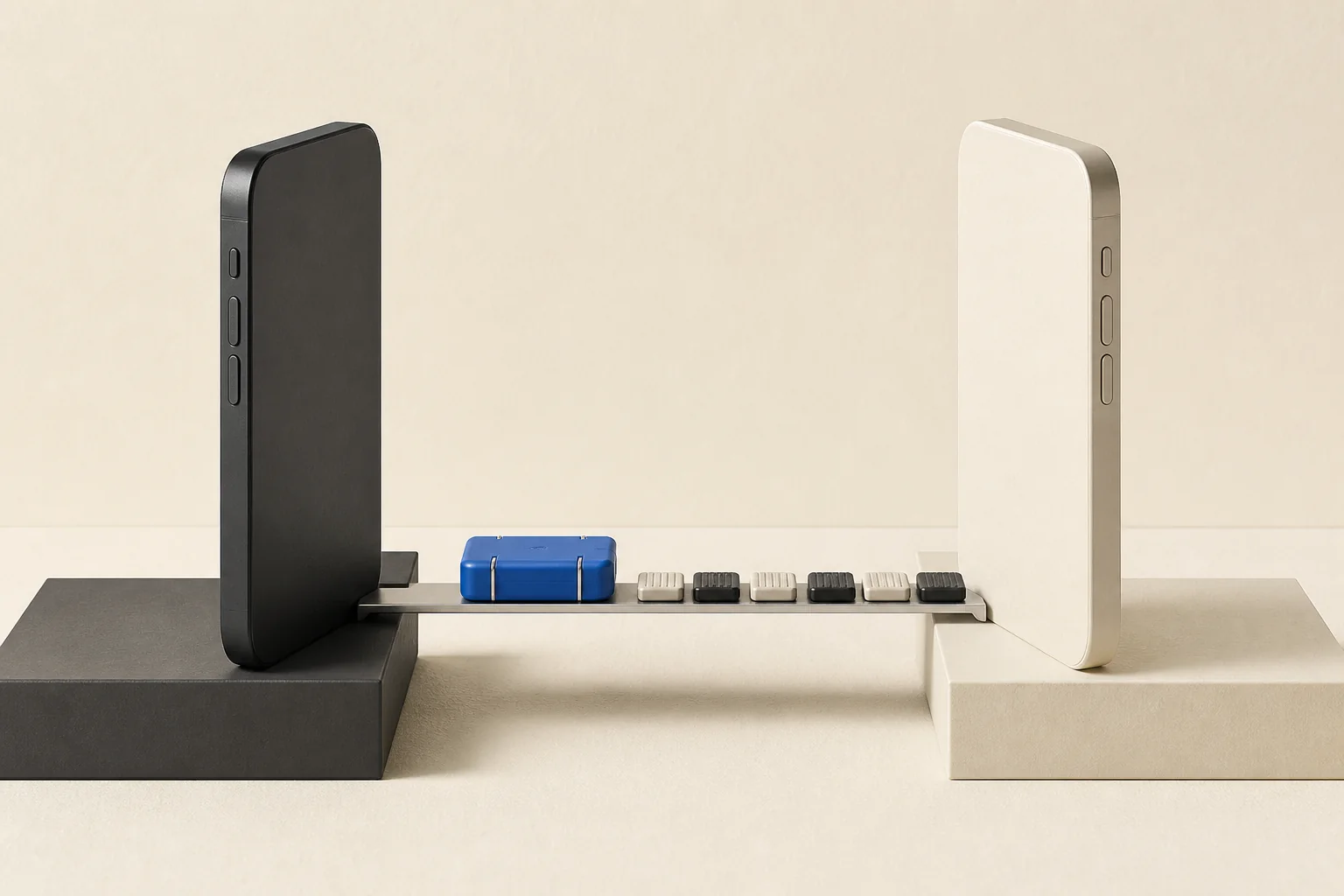

A self-custody wallet does not live inside one phone. The phone holds the credentials and software that let you reach it. Your assets remain on their networks; what decides whether a replacement device can reach them is the recovery access you prepared before the old device disappeared.
Aperture gives every eligible wallet two complementary recovery paths: a verified manual backup and a passkey-encrypted iCloud backup. One is deliberately offline and portable. The other is designed to make restoring on a new Apple device direct without sending unencrypted wallet material to a server.
The device is replaceable. The recovery phrase, any BIP-39 passphrase, and access to the wallet’s encrypted backup are not.
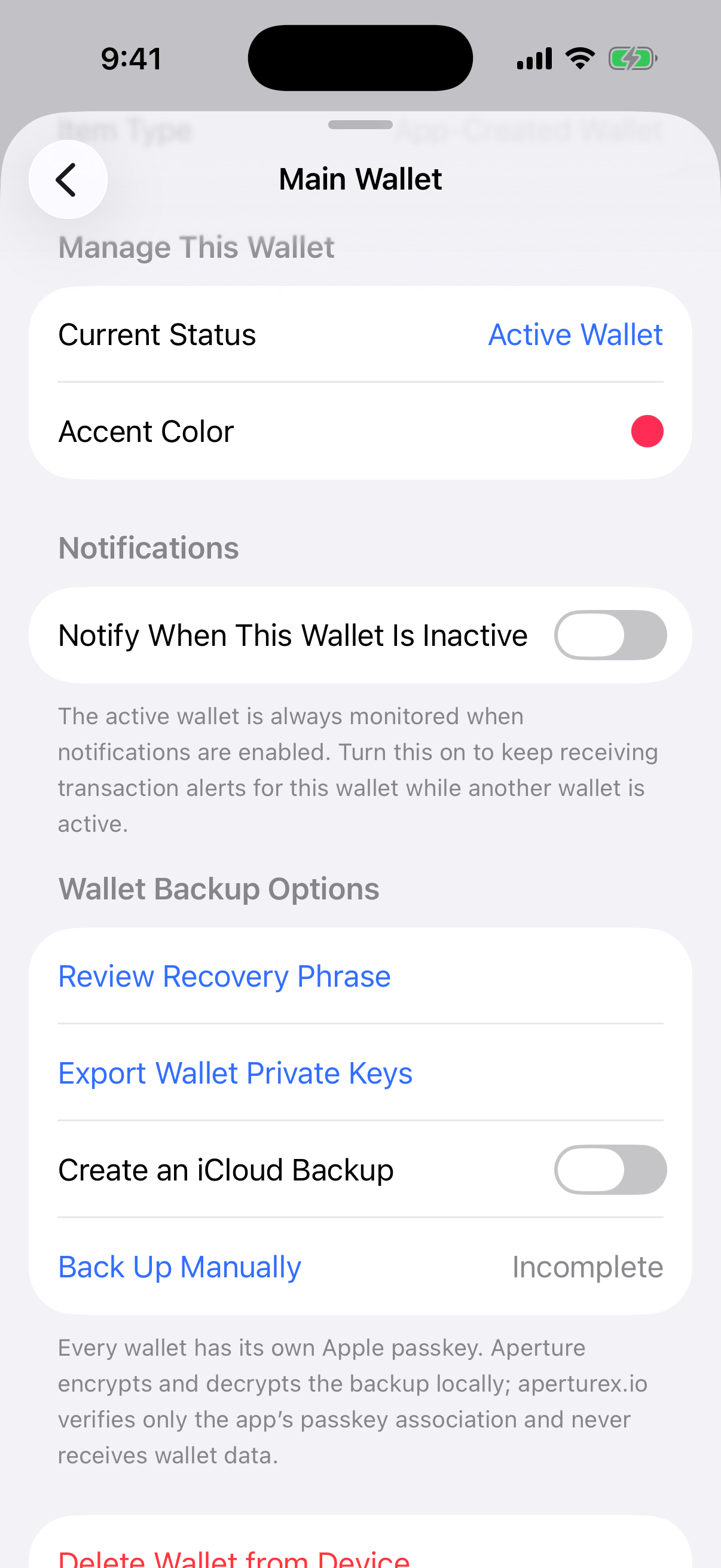
A real Simulator capture from the current Aperture build. It shows both backup paths and contains no recovery phrase, passphrase, private key, wallet address, or other private account data.
Start with the failure you are preparing for
“I lost my phone” can mean several different things: the device was stolen, the screen failed, the app was removed, or you moved to a new iPhone. In each case, the goal is the same: reproduce the wallet credential on a trusted device and confirm that it derives the expected public accounts.
Aperture cannot look up a recovery phrase, reset a forgotten BIP-39 passphrase, or bypass an unavailable Apple passkey. That is the point of self-custody: there is no recovery desk that secretly holds another copy. A good backup plan therefore avoids depending on a single device, a single storage system, or memory alone.
Two backup paths are stronger than one
The manual and iCloud options protect against different failures. They are most useful together, not as competing choices.
Manual backup protects portability. For an app-created wallet, securely record the 12- or 24-word recovery phrase offline. If the wallet uses a BIP-39 passphrase, record that exact passphrase separately. Compatible recovery software can reproduce the wallet without depending on Aperture or iCloud.
Encrypted iCloud backup protects convenience. Aperture encrypts the wallet locally, saves the encrypted backup document in your private iCloud Drive container, and protects restoration with a unique Apple passkey for that wallet.
Verification protects against false confidence. Aperture does not mark a manual backup complete until you prove you recorded it, and it does not mark an iCloud backup complete until it reads the stored document back and verifies it.
A screenshot of recovery words, a note in an email draft, or a copy stored beside its passphrase is not the same as a resilient backup. The objective is a durable record that can survive the loss of the phone without giving one stolen item everything needed to move the funds.
Manual backup: the universal recovery route
Choose Back Up Manually from the wallet’s settings. After Aperture authenticates the sensitive action, it shows the wallet’s recovery phrase so you can record it in a private environment. The next screen hides a random set of words and asks you to enter them again. Only a correct verification marks the manual backup complete.
For a passphrase-protected wallet, the passphrase is part of the recovery credential. The same recovery words with an empty, different, or mistyped passphrase derive a different wallet. Keep a durable copy of the exact passphrase—including case, spaces, and punctuation—separate from the words.
Write the recovery phrase in the numbered order shown by Aperture.
Keep the record offline and protected from fire, water, theft, and casual photography.
If a BIP-39 passphrase is used, store it in a different secure location.
Never enter either secret into a website, support chat, form, or message.
Perform a private recovery test before treating the backup as finished.
What Aperture does when you enable iCloud Backup
Turn on Create an iCloud Backup for a wallet and Aperture begins a wallet-specific protection flow. The design separates the encrypted file, the key that encrypts it, and the Apple credential that authorizes recovery.
A wallet-specific Apple passkey is created or verified. The passkey belongs to that wallet rather than acting as one master credential for every Aperture wallet.
A separate 256-bit data key protects the wallet material. Aperture uses AES-GCM authenticated encryption and wraps the data key with material derived through the Apple passkey.
Encryption happens locally. The recovery phrase, optional BIP-39 passphrase, or imported private-key material is encoded and encrypted on the device before the backup document reaches iCloud Drive.
The stored document is read back. Aperture fetches the backup it just saved, authenticates and decrypts it locally, and checks that it matches the wallet. A failed read-back is not presented as a completed backup.
The verified time is recorded. Once the remote copy is confirmed, the wallet settings can show when the most recent successful iCloud backup was completed.
The encrypted document includes the protected wallet payload plus limited metadata needed to identify and list the backup. Aperture’s website verifies only the app’s passkey association; it never receives the wallet’s recovery material or encrypted backup file.
Restore after losing the phone
On a replacement iPhone or after reinstalling Aperture, sign in to the Apple Account that has the relevant iCloud Drive data and Apple passkey in Passwords & Keychain. Then open Wallets Management and choose Restore an iCloud Backup.
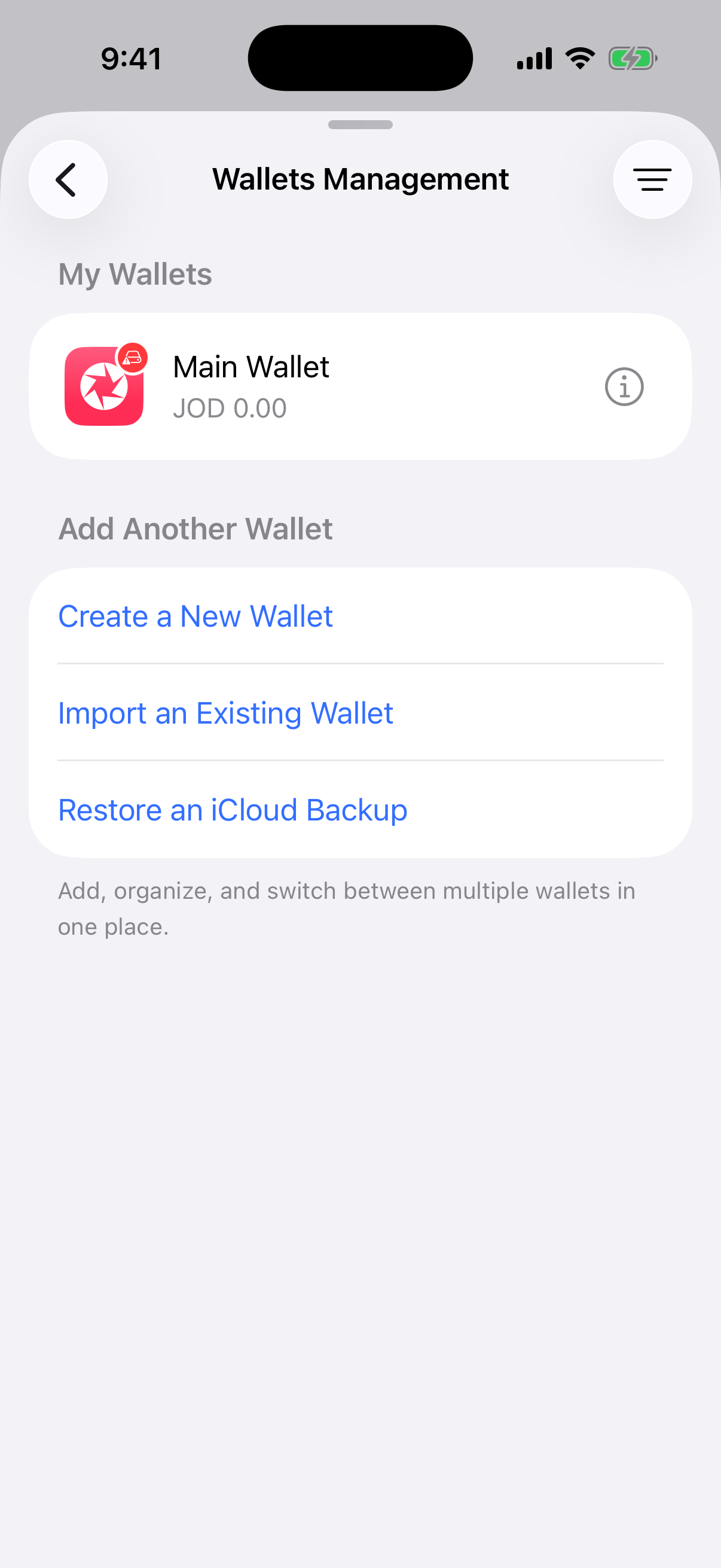
This is a real capture from Aperture running in Simulator. The restore action is available beside the normal create and import paths.
Open Aperture on the trusted replacement device.
Choose Restore an iCloud Backup from Wallets Management, or select it from the import-method screen.
Select the backup by its wallet name and verified backup time.
Approve the wallet’s Apple passkey with the system authentication offered by the device.
Aperture derives the wrapping key, unwraps the backup data key, authenticates and decrypts the backup locally, validates the recovered wallet, and then imports it.
Compare a known public address or receive address before sending meaningful funds.
An explicit restore always asks the wallet’s Apple passkey to authorize the operation. A cached local key is not used to silently restore a wallet on a new device. If the correct passkey is unavailable, the encrypted document remains unreadable.
Choose the recovery credential you still have
Aperture keeps the recovery routes together so the next step follows the credential available to you—not the way the wallet happened to be created on the old phone.
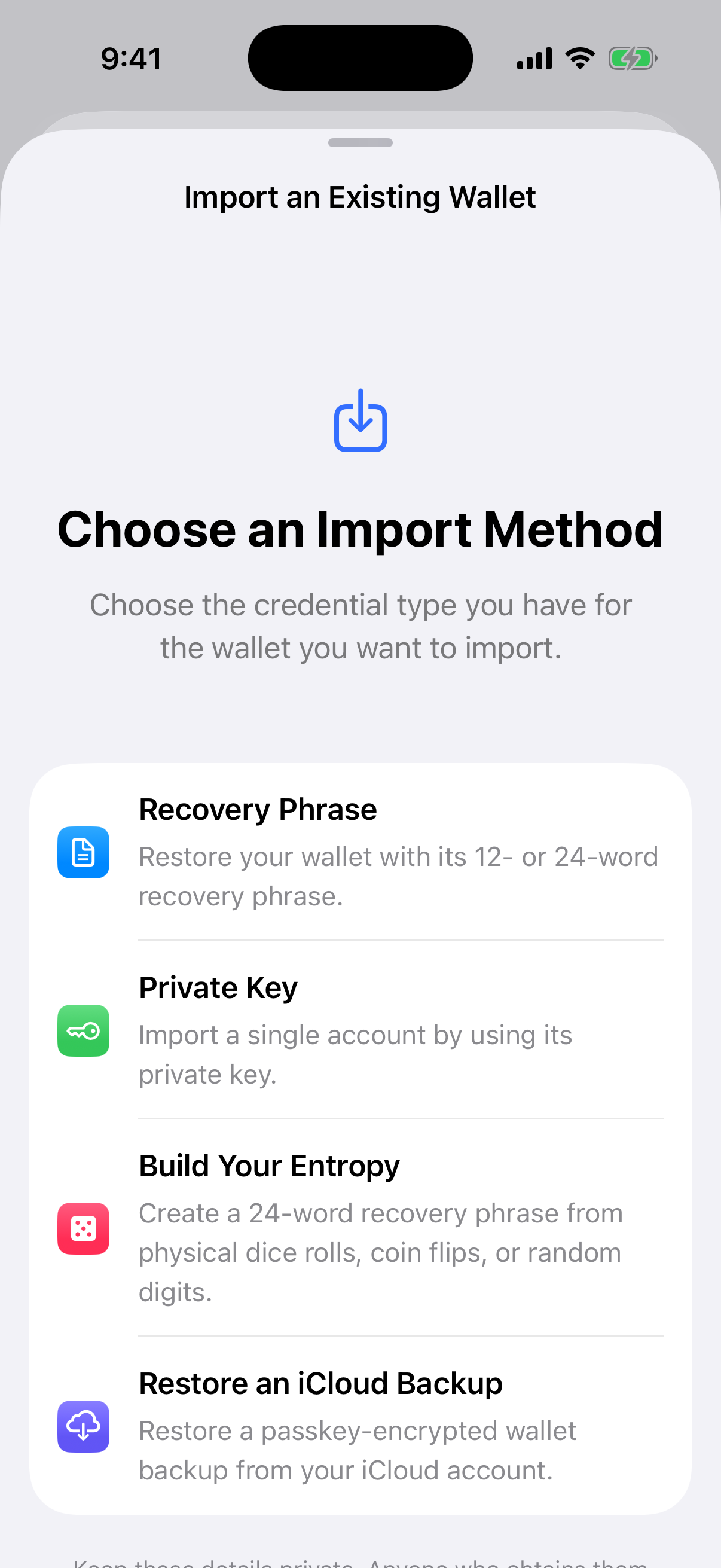
A real Simulator capture of the current import flow. The screen presents recovery phrase and encrypted iCloud restore as separate choices and contains no entered secret.
You have the recovery phrase. Choose Recovery Phrase and enter the 12 or 24 words on the trusted device. Add the exact BIP-39 passphrase if the wallet used one.
You have the iCloud backup and Apple passkey. Choose Restore an iCloud Backup, select the wallet, and approve the system passkey request.
You imported a single private key. Use its private-key import route or restore the encrypted iCloud backup created for that wallet. A seed phrase for another wallet cannot reproduce that standalone account.
A practical lost-phone playbook
Secure the missing device. Use Apple’s device controls to mark it lost or erase it when appropriate. Change unrelated account credentials if the device may have exposed them.
Use a trusted replacement. Update the operating system, install Aperture from its official distribution, and avoid restoring wallet secrets on a borrowed or modified device.
Take the strongest available recovery path. Use the encrypted iCloud backup when the Apple passkey is available; keep the manual recovery phrase as the independent fallback.
Verify before acting. Confirm known public addresses, wallet names, and networks. A passphrase typo can open a different valid wallet without displaying a “wrong passphrase” warning.
Refresh the recovery plan. After the new device is established, confirm the manual backup remains accurate and create a fresh, verified iCloud backup if needed.
Know what each path cannot do
iCloud Backup is not a substitute for the recovery phrase. It depends on iCloud Drive, the correct Apple Account, and the wallet’s Apple passkey remaining available.
The recovery phrase cannot replace a lost BIP-39 passphrase. Both are required to reproduce a passphrase-protected wallet.
A completed backup can become stale. Wallet credentials are stable, but imported-wallet configuration and backup metadata should still be reverified after meaningful changes.
Each wallet must be checked separately. A backup status shown for one wallet does not prove that every wallet in Aperture has a verified recovery path.
Support cannot decrypt the backup. Without the correct recovery credential or Apple passkey, Aperture cannot manufacture access—and neither can anyone else.
The five-minute recovery audit
Open every wallet in Wallets Management and review its backup status.
Confirm the manual recovery phrase is recorded offline and readable.
Confirm any BIP-39 passphrase is recorded exactly and stored separately.
Confirm iCloud Backup shows a recent successful verification where you use it.
Make sure Passwords & Keychain and iCloud Drive are available on the Apple Account you expect to use.
Know which public address you will compare after a restore.
A backup is finished only when you know what it contains, where the independent recovery credential is, and how you will verify the restored wallet.
Losing a phone should be an equipment problem, not a custody crisis. Aperture cannot remove the responsibility of self-custody, but it can make that responsibility visible: two recovery paths, local encryption, explicit verification, and a restore flow that tells you exactly which credential is required.
Prepare both paths while the wallet is accessible. Then if the device disappears, the important thing does not disappear with it.